> For the complete documentation index, see [llms.txt](https://support.incidents.cloud.solarwinds.com/llms.txt). Markdown versions of documentation pages are available by appending `.md` to page URLs; this page is available as [Markdown](https://support.incidents.cloud.solarwinds.com/integrations/alert-source-integrations-native/amazon_rds.md).
# Amazon RDS (AWS)
Send alerts from Amazon RDS to Squadcast
[Amazon RDS](https://aws.amazon.com/rds/) makes it easy to set up, operate, and scale a relational database in the cloud. It provides cost-efficient and resizable capacity while automating time-consuming administration tasks, such as hardware provisioning, database setup, patching, and backups.
Route detailed alerts from Amazon RDS to the right users in Squadcast.
### How to integrate Amazon RDS with Squadcast
1. Navigate to **Services** -> **Service Overview** -> select or search for your Service. Expand the accordion -> In the Alert Sources section, click **Add**.
2\. Select **Amazon RDS.** Copy the displayed **Webhook URL** to [configure](#in-aws-configure-sns-endpoint) it within **Amazon RDS**. Finish by clicking **Add Alert Source** -> **Done**.
{% hint style="warning" %} **Important****:**
When an alert source turns Active, it’ll show up under Configured Alert Sources. You can either generate a test alert from the integration or wait for a real-time alert to be generated by the Alert Source.\
\
An Alert Source is active if there is a recorded incident via that Alert Source for the Service.
{% endhint %}
### In AWS: Configure SNS Endpoint
**(1)** Log in to your AWS account and proceed to **SNS**
**(2)** Click on **Create topic**
**(3)** Within the dialogue box, fill in the details as per your requirements and then click on **Create topic**
**(4)** Inside the topic, click on **Create subscription**
**(5)** Select the protocol as **HTTPS** and in the endpoint enter the URL you obtained from the previous step
**(6)** Finally, click on **Create subscription** to create the subscription
{% hint style="warning" %}
**Important:**
The **Subscription ID** for the subscription should immediately change to **Confirmed** from **PendingConfirmation**. Click on the refresh button to verify the same.
{% endhint %}
### In AWS: Configure Amazon RDS
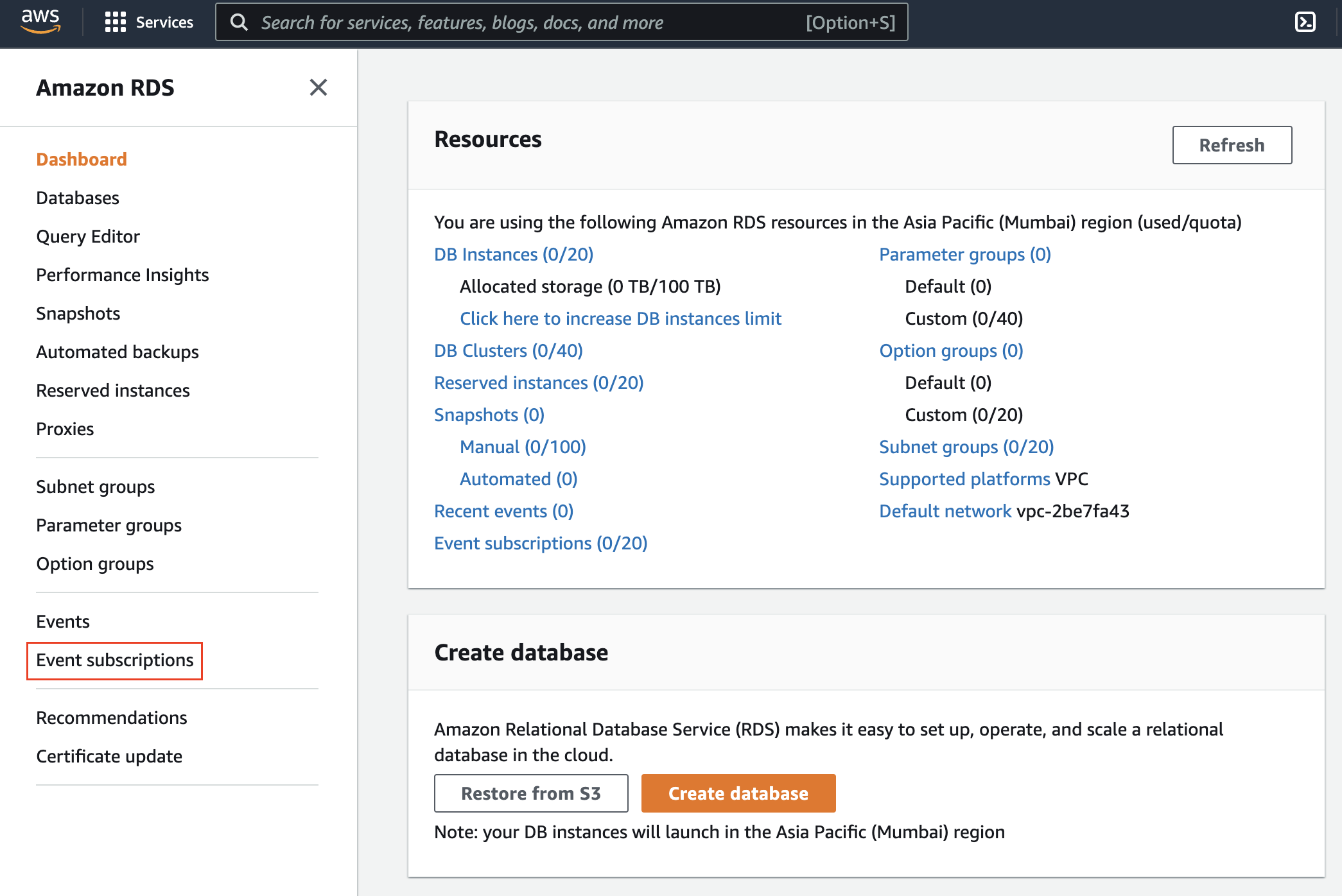
**(1)** Headover to your RDS dashboard and navigate to **Event Subscriptions**
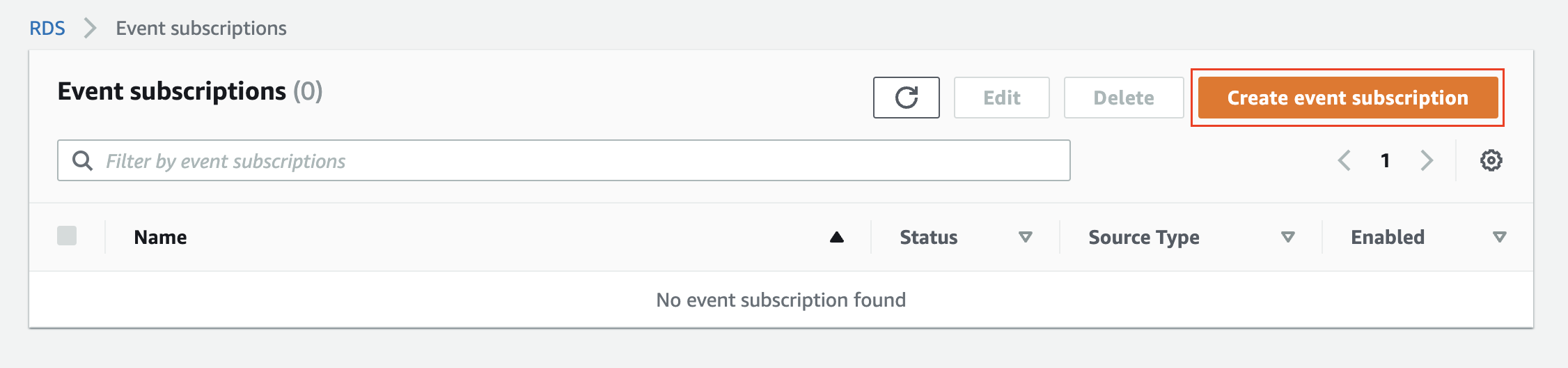
**(2)** Click on **Create event subscription**
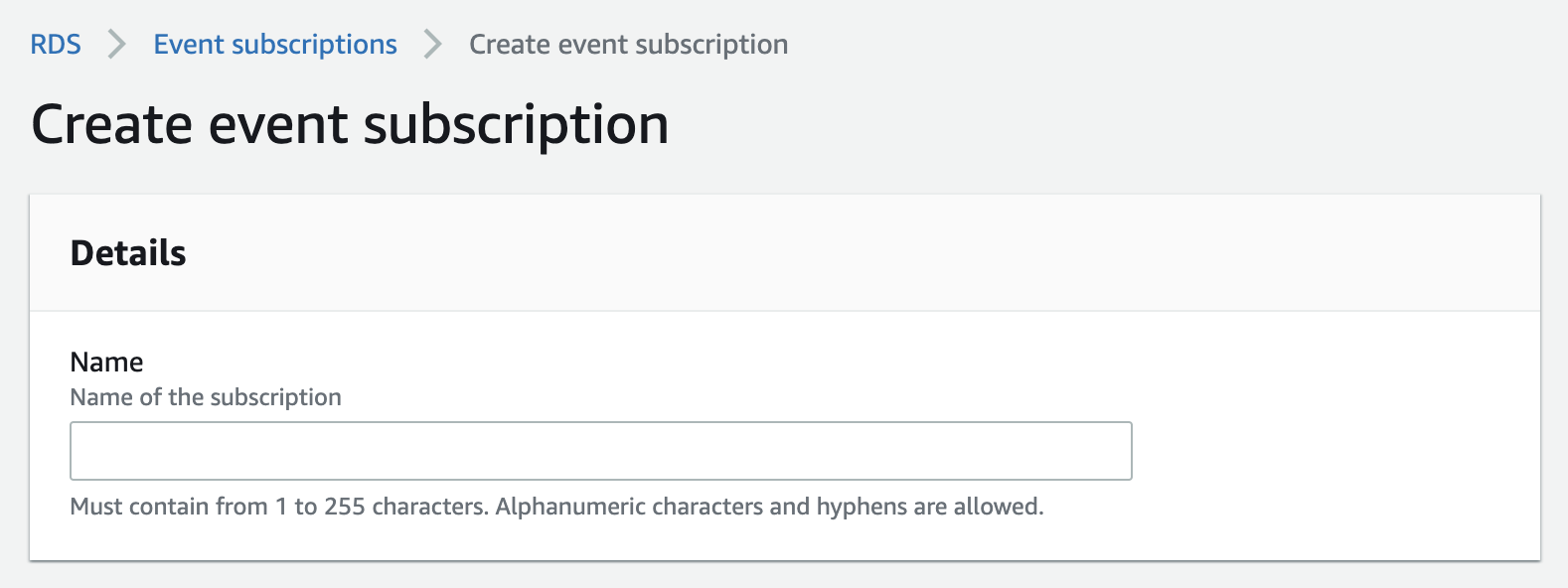
**(3)** Enter a suitable **Name**
**(4)** Next, select **Target** as **Amazon Resource Name (ARN)** and select the previously created ARN from the drop-down
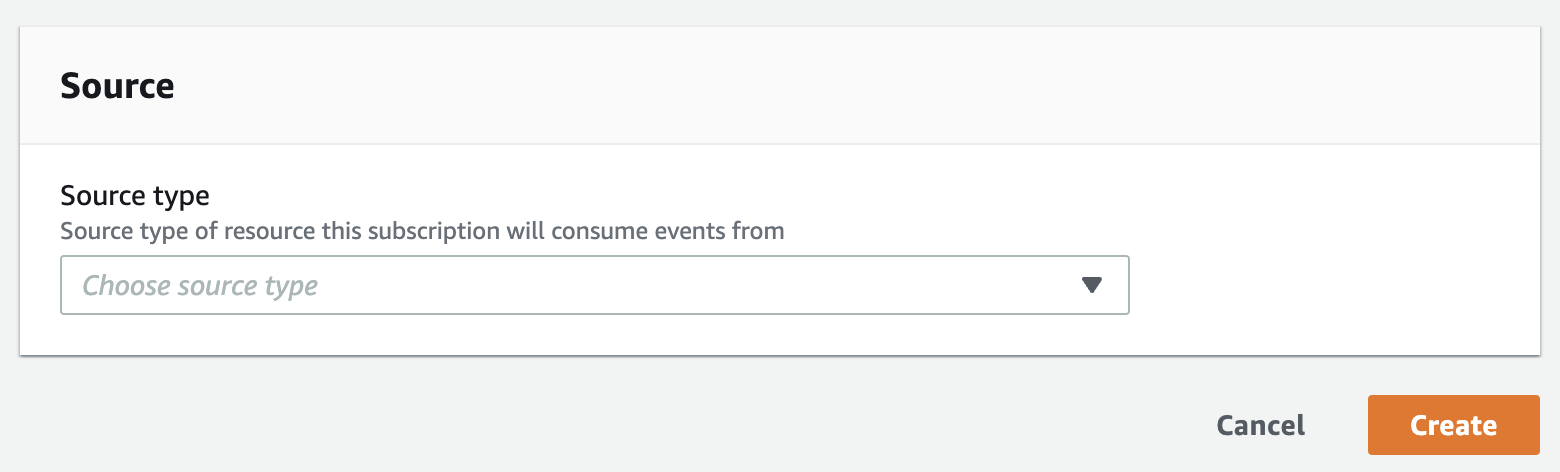
**(5)** Select the appropriate **Source type** from the drop-down and click on **Create**
That's it, you are good to go! Your Amazon RDS integration is complete. Now, whenever an event is triggered by Amazon RDS, an incident will be created in Squadcast for it.
*Have any questions?* [*Ask the community*](https://community.squadcast.com/view/home)*.*
---
# Agent Instructions
This documentation is published with GitBook. GitBook is the documentation platform designed so that both humans and AI agents can read, navigate, and reason over technical content effectively. Learn more at gitbook.com.
## Querying This Documentation
If you need additional information that is not directly available in this page, you can query the documentation dynamically by asking a question.
Perform an HTTP GET request on the current page URL with the `ask` query parameter, and the optional `goal` query parameter:
```
GET https://support.incidents.cloud.solarwinds.com/integrations/alert-source-integrations-native/amazon_rds.md?ask=&goal=
```
`ask` is the immediate question: it should be specific, self-contained, and written in natural language.
`goal` is optional and describes the broader end goal you are ultimately trying to accomplish on behalf of the user. GitBook uses it to tailor the answer towards what is most useful for that goal.
The response will contain a direct answer to the question and relevant excerpts and sources from the documentation.
Use this mechanism when the answer is not explicitly present in the current page, you need clarification or additional context, or you want to retrieve related documentation sections.

.png?alt=media&token=010b1cff-9db8-4cc8-967c-3055a4d332b2)