> For the complete documentation index, see [llms.txt](https://support.incidents.cloud.solarwinds.com/llms.txt). Markdown versions of documentation pages are available by appending `.md` to page URLs; this page is available as [Markdown](https://support.incidents.cloud.solarwinds.com/integrations/alert-source-integrations-native/kentik.md).
# Kentik
Efficiently manage incidents with Kentik integration. Our step-by-step guide configures Kentik for optimal incident response using Squadcast.
[Kentik](https://kentik.com/) is a network observability solution that empowers network pros to plan, run, and fix any network.
Maintain stable, reliable applications with automated testing and AI.
## How to integrate Kentik with Squadcast
### In Squadcast: Using Kentik as an Alert Source
1. Navigate to **Services** -> **Service Overview** -> select or search for your Service. Expand the accordion -> In the Alert Sources section, click **Add**.
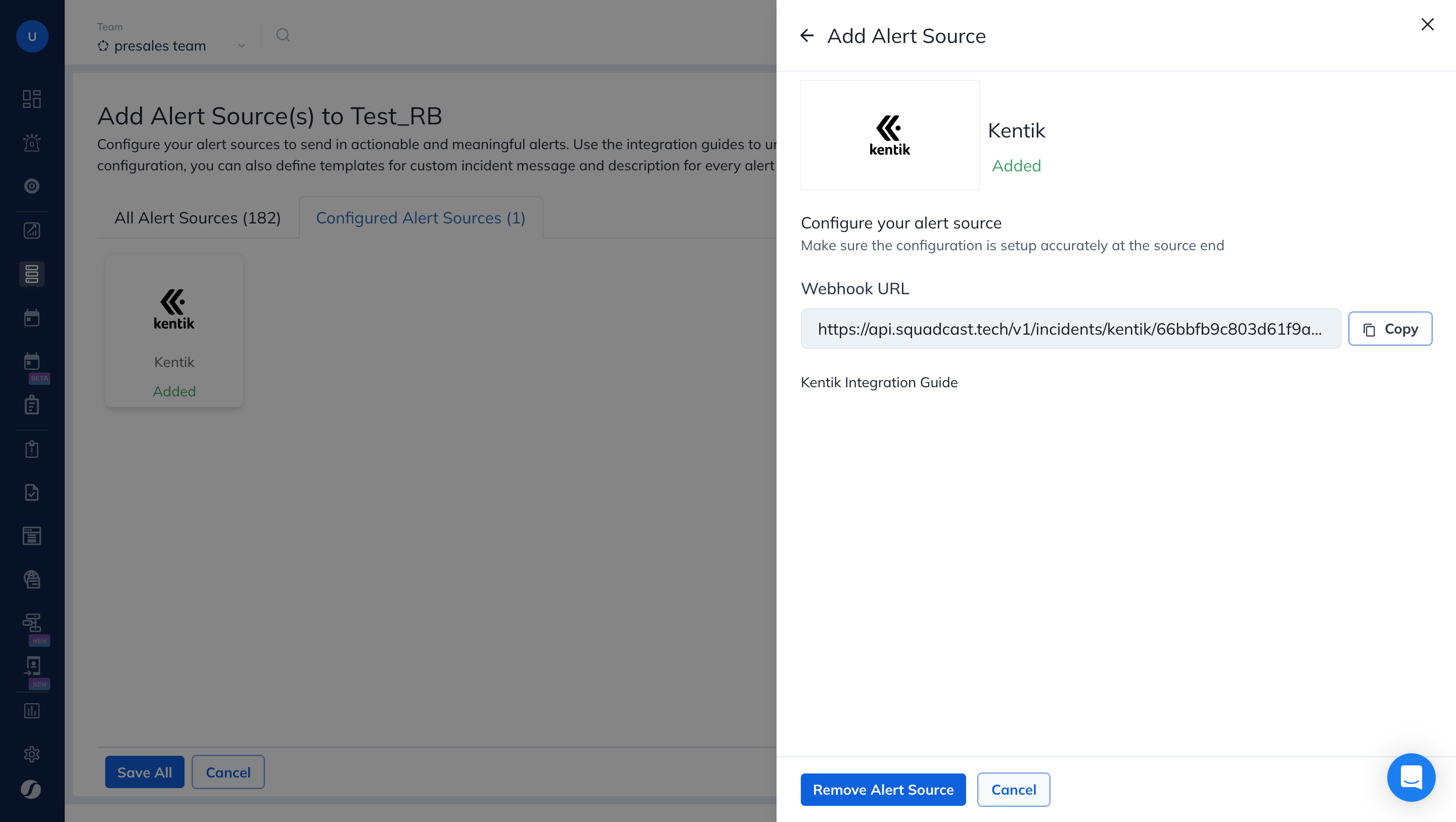
2\. Select **Kentik**. Copy the displayed **Webhook URL** to [configure](#in-kentik-create-a-squadcast-webhook-as-a-notification-channel) it within **Kentik.** Finish by clicking **Add Alert Source** -> **Done**.
{% hint style="warning" %} **Important****:**
When an alert source turns Active, it’ll show up under Configured Alert Sources. You can either generate a test alert from the integration or wait for a real-time alert to be generated by the Alert Source.\
\
An Alert Source is active if there is a recorded incident via that Alert Source for the Service.
{% endhint %}
### In Kentik: Create a Squadcast Webhook as a Notification Channel
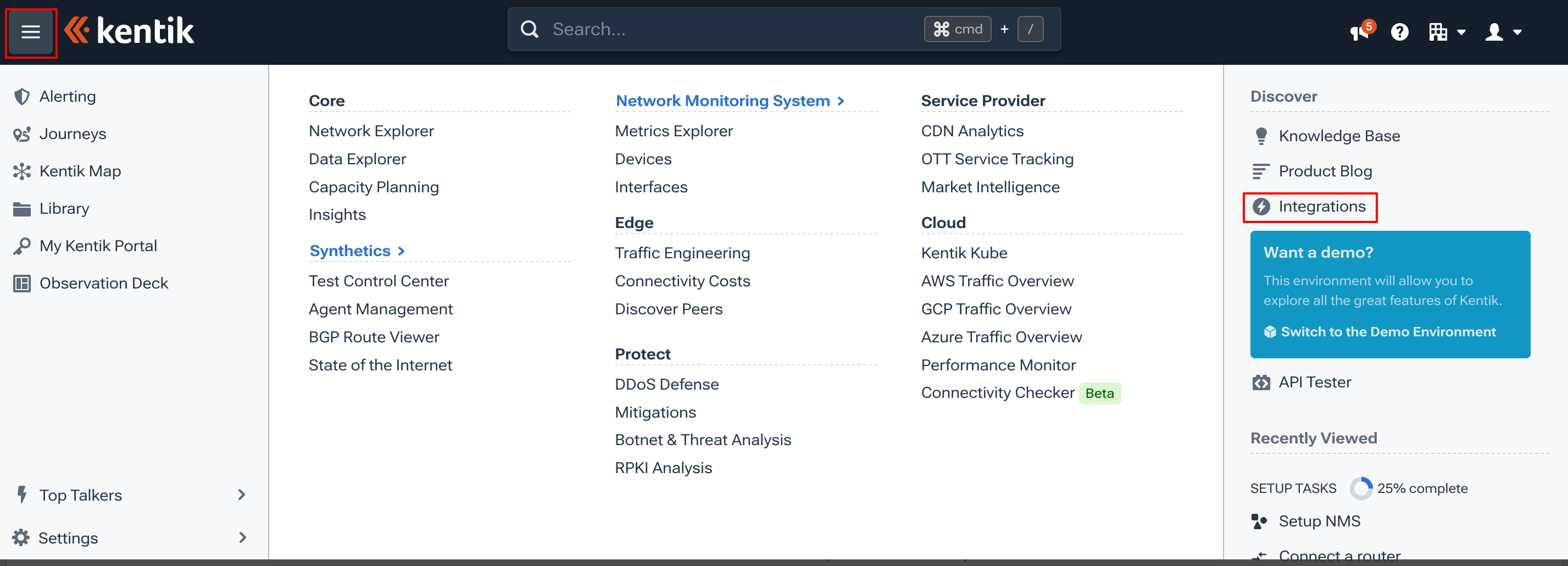
1. Login to your Kentik dashboard, click on the top left **Navigation Button** and select **Integrations**
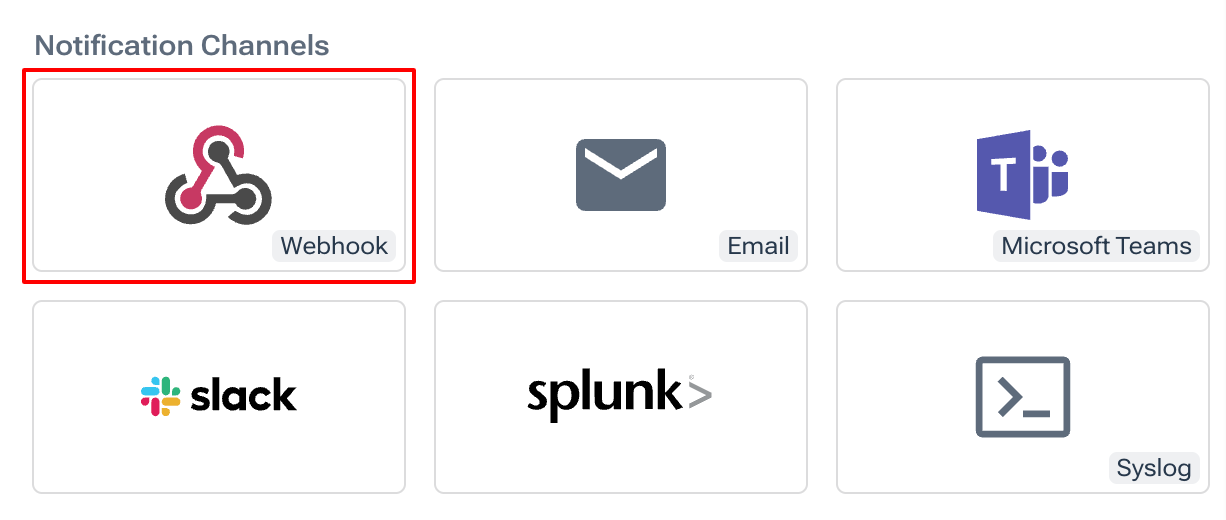
2. Click on **Custom Webhooks** under the **Notification Channels**
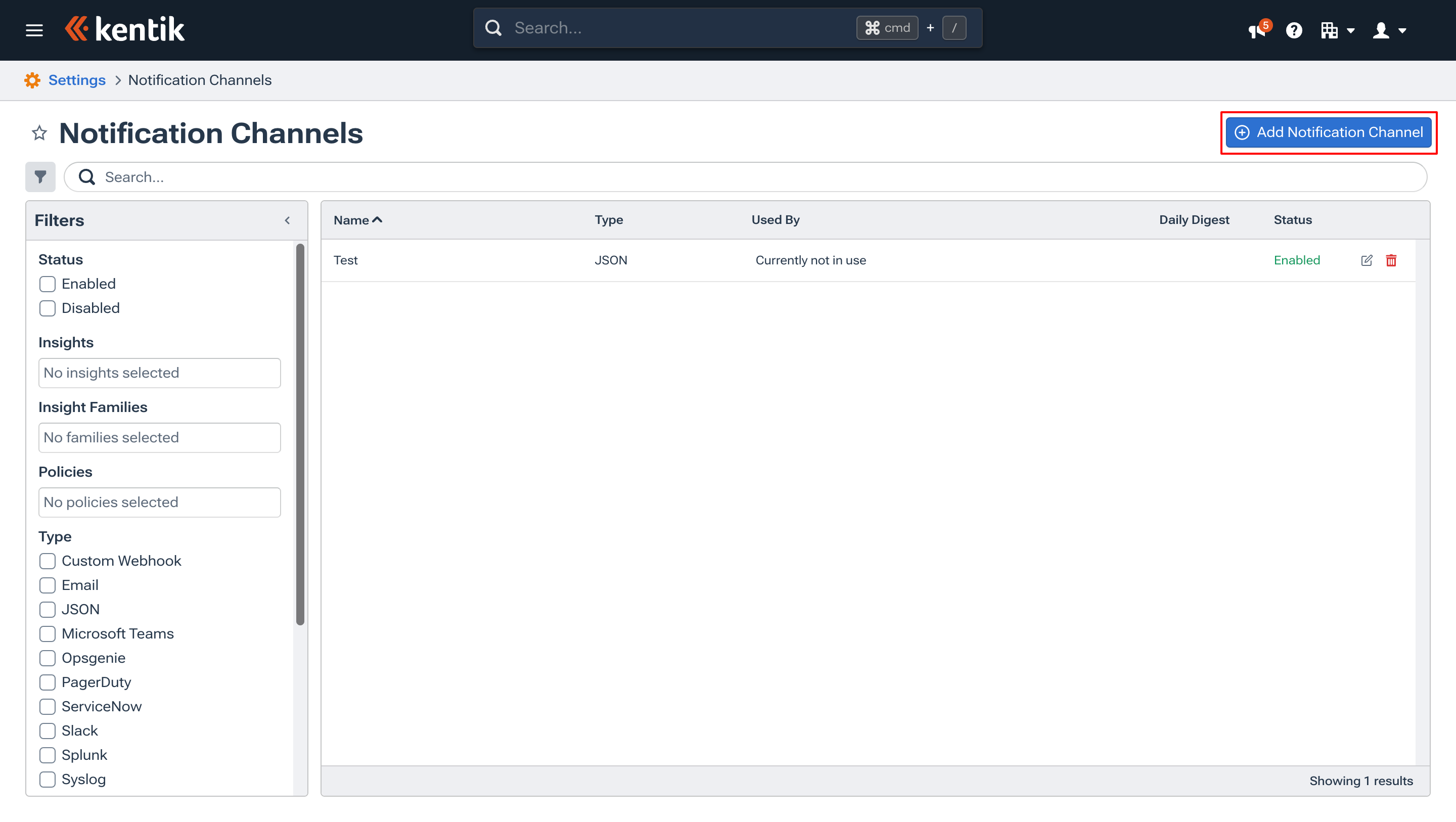
3. Click on **Add Notification Channel**
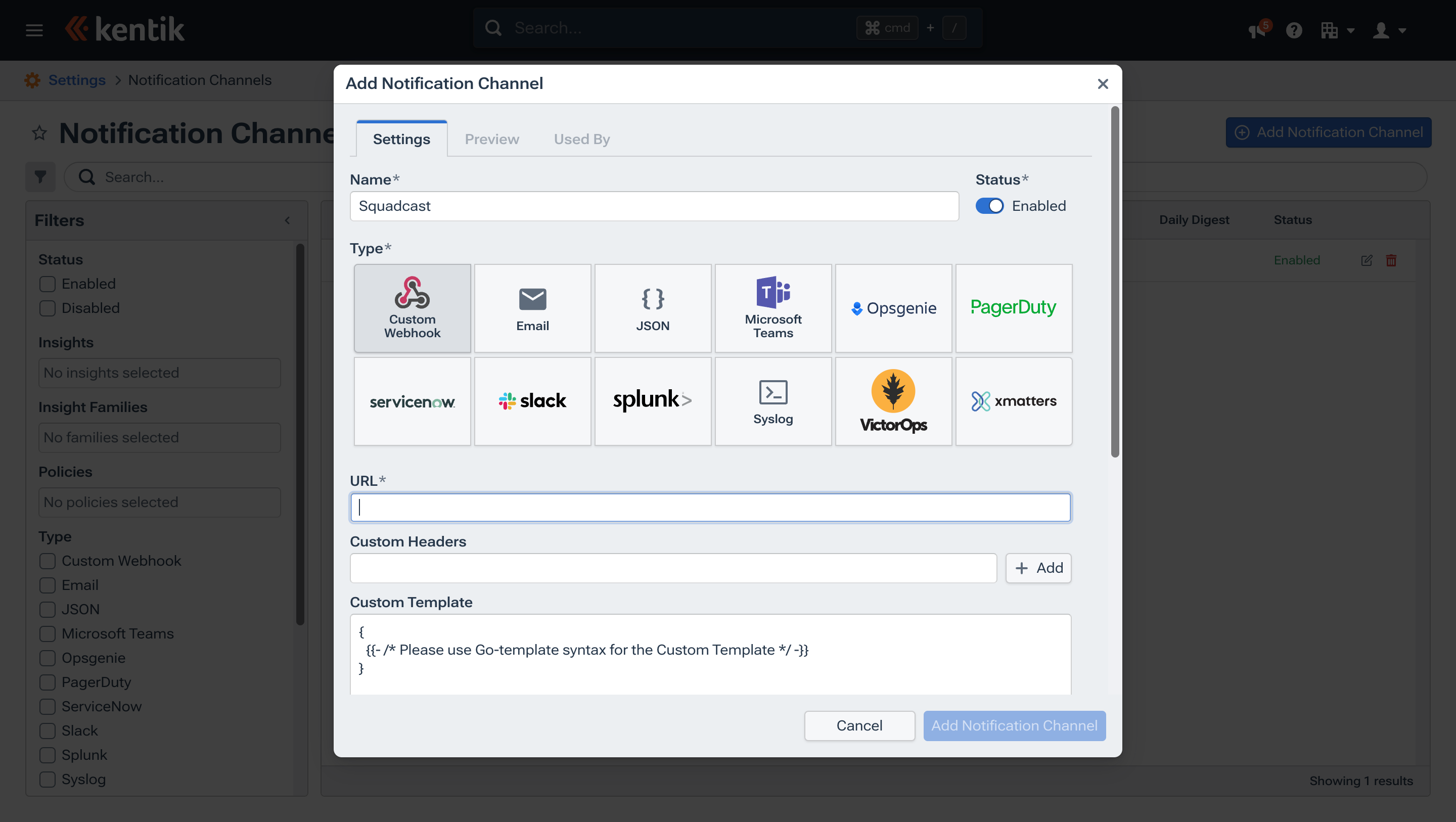
4. Enter the notification channel `Name` as **Squadcast**, `Type` as **Custom Webhook**, paste the Webhook`URL` we have earlier copied from the Squadcast service. Under the `Custom Template` section, paste the following code:
```
{
"Events": [
{{- range $index, $event := .Events -}}
{{- join $index -}}
{
{{- . | j | x -}},
{{- .Details.ToMap | j | x -}}
}
{{- end -}}
]
}
```
5. Click on **Add Notification Channel** and use this custom webhook to send all alert data to Squadcast.
Now, whenever an alert is triggered in Kenitk, an incident will be created in Squadcast.
* When it is resolved in Kentik, it will automatically get Resolved in Squadcast.
* **Note:** Sending a Test Incident from Kentik to Squadcast is not supported.
*Have any questions?* [*Ask the community*](https://community.squadcast.com/view/home)*.*