> For the complete documentation index, see [llms.txt](https://support.incidents.cloud.solarwinds.com/llms.txt). Markdown versions of documentation pages are available by appending `.md` to page URLs; this page is available as [Markdown](https://support.incidents.cloud.solarwinds.com/integrations/extensions/hubspot.md).
# Hubspot
To create tickets in Hubspot for Squadcast Incidents with the help of Outgoing Webhooks
## Create a Ticket in Hubspot via Webhook Template
Follow the below steps to configure the “Hubspot - Create Ticket” action via webhooks.
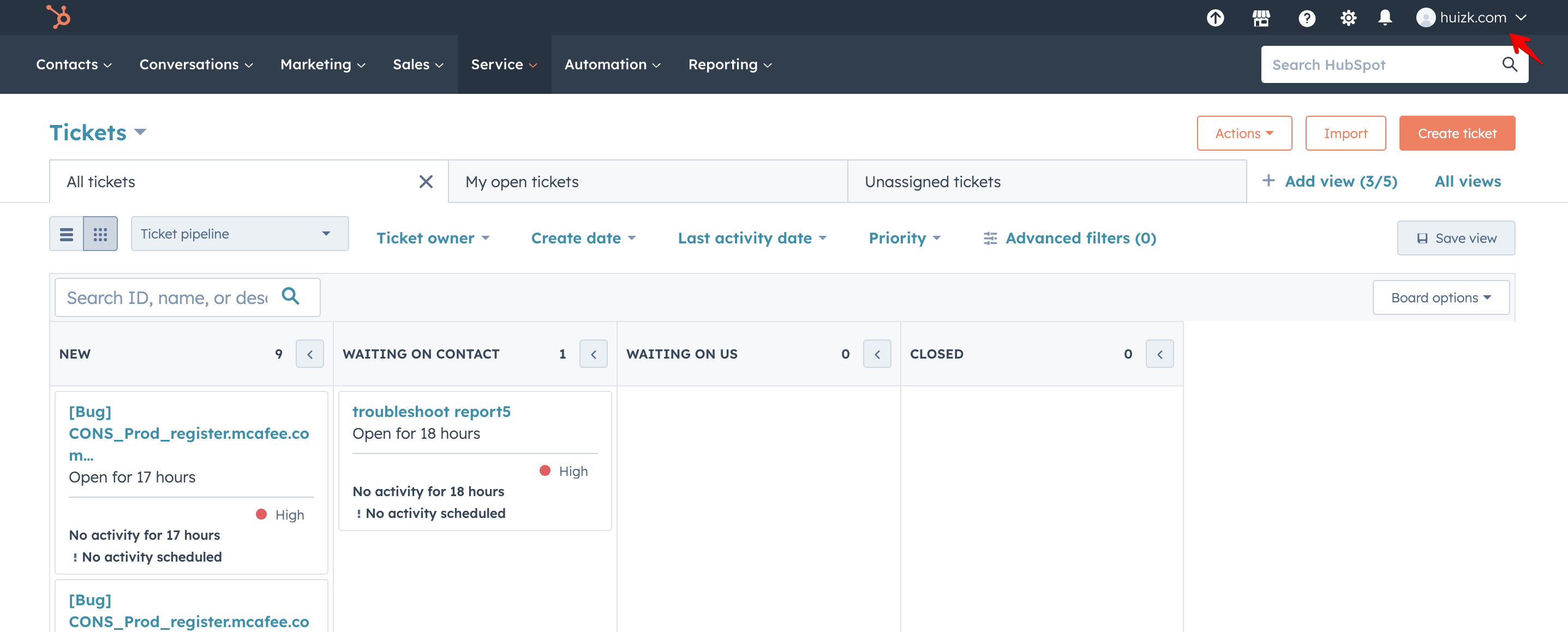
1. Login to your **Hubspot portal** -> click on the drop down on the top right -> click **Profile & Preferences**
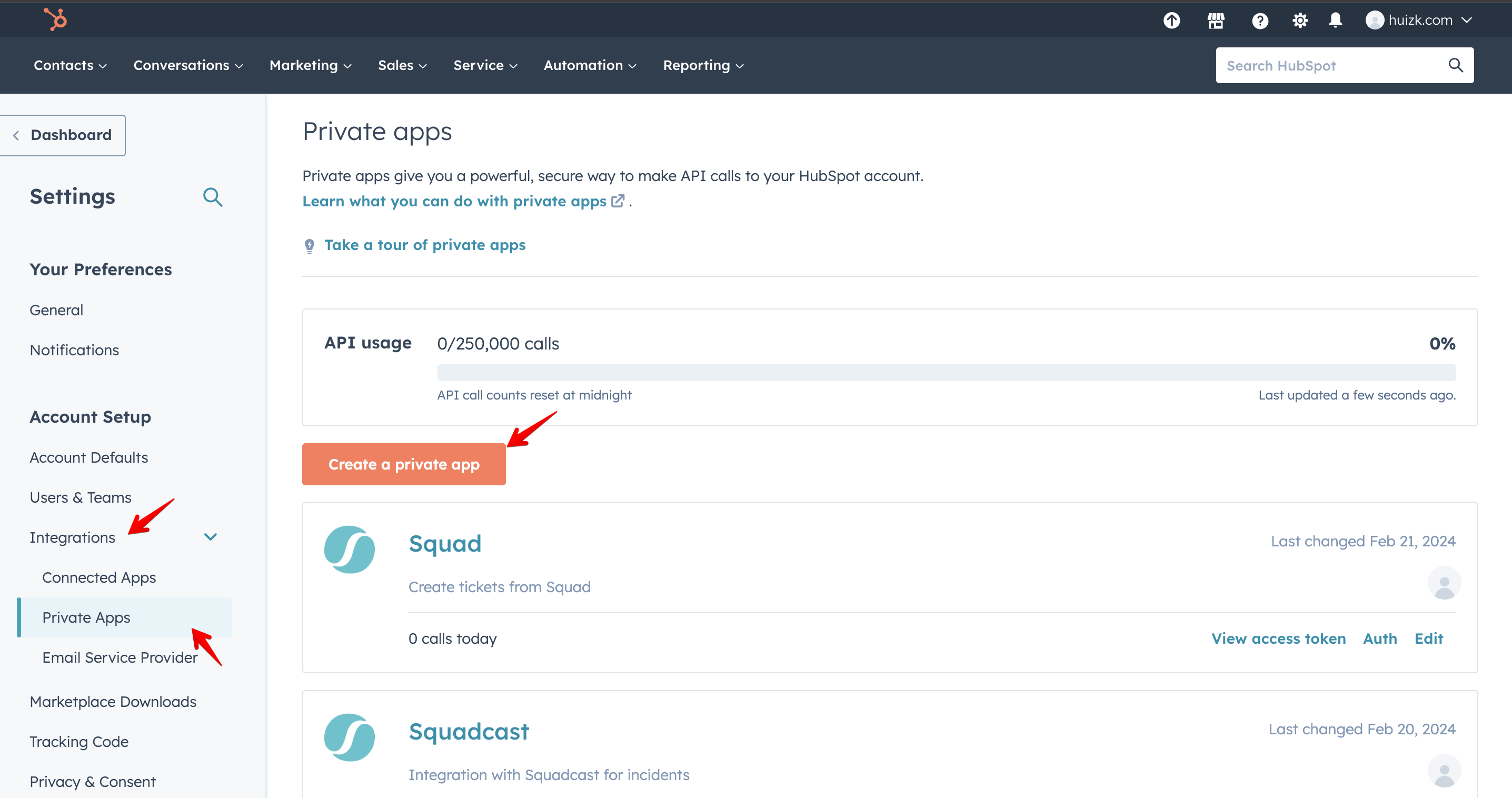
2. Click on **Integrations** -> **Private apps** -> click on **Create a private app**
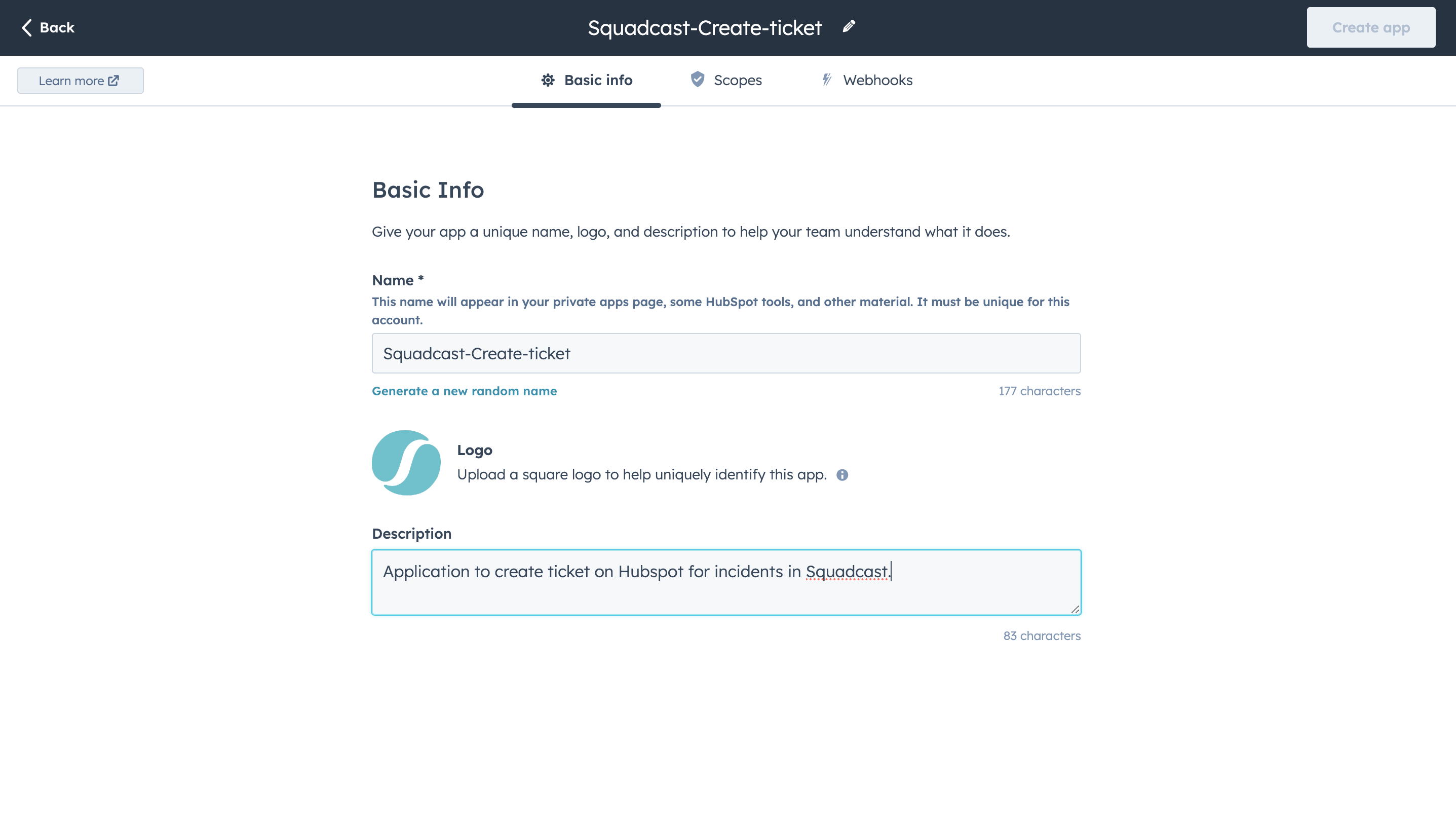
3. Add the name and description of the App in the Basic info section.
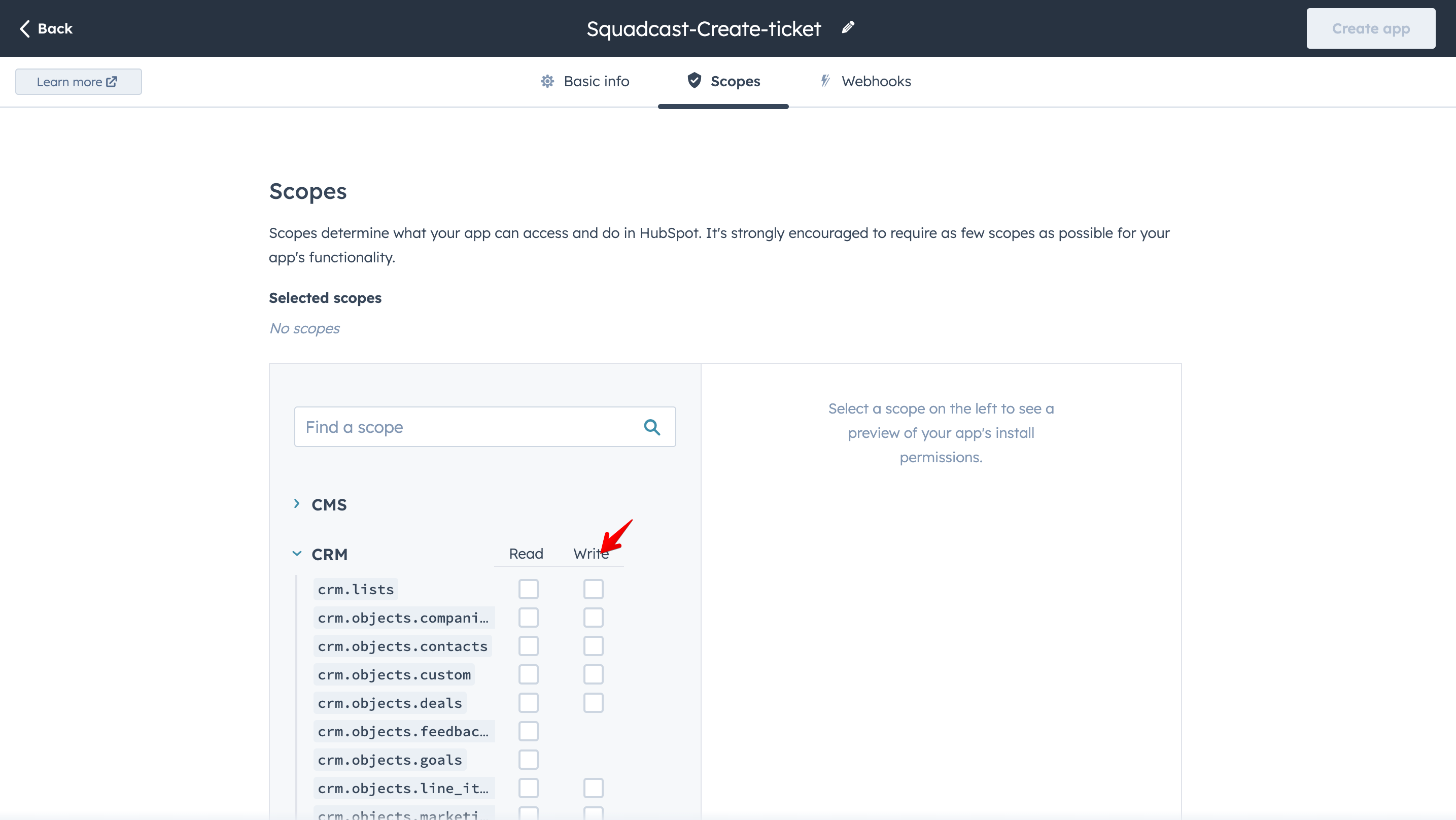
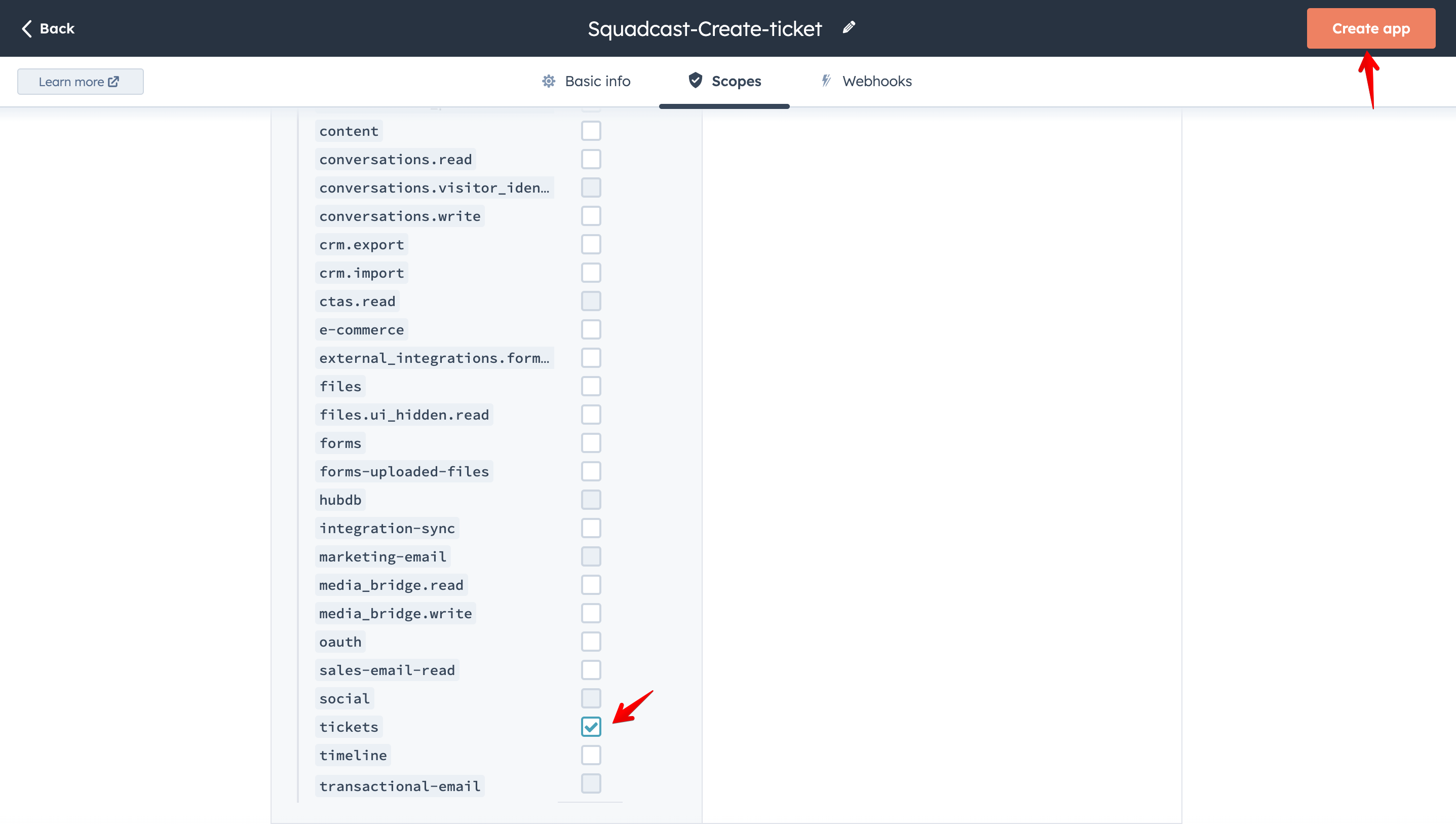
4. Make sure to give all of the permissions ( Read and Write) in the Scopes section of the app. ( make sure that you have enabled the "tickets" permission)
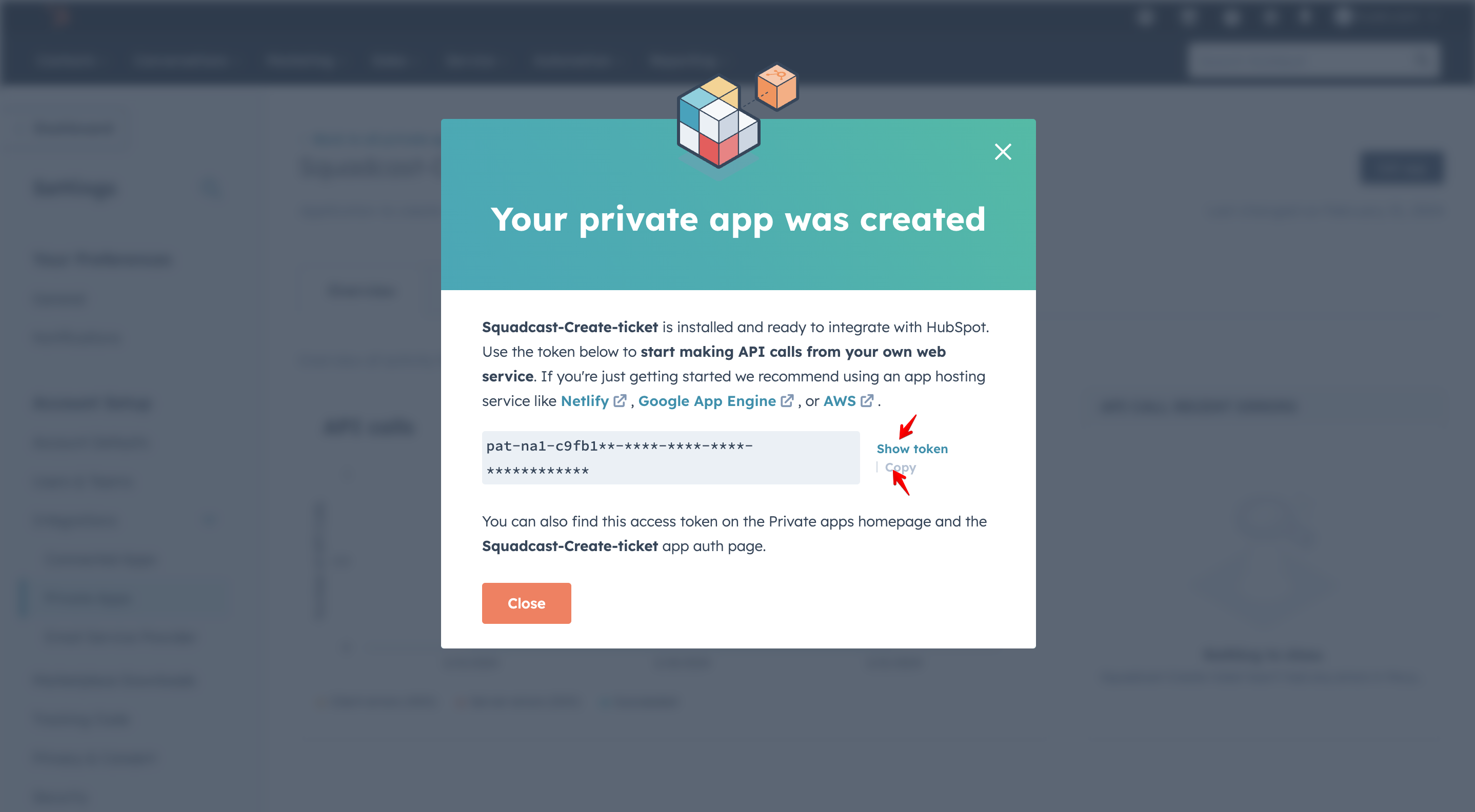
5. Click on **Create App** and make sure to copy the **Access Token** shown in the next screen.
## Using Webhooks to create Hubspot tickets for Squadcast Incidents
1. Navigate to **Settings** -> **Webhooks**.
2. Click **Add Webhook**. On the next screen, you will be guided through three steps. Navigate between these steps by clicking on any of the steps on the top bar.
3. **Add Webhook Details**:
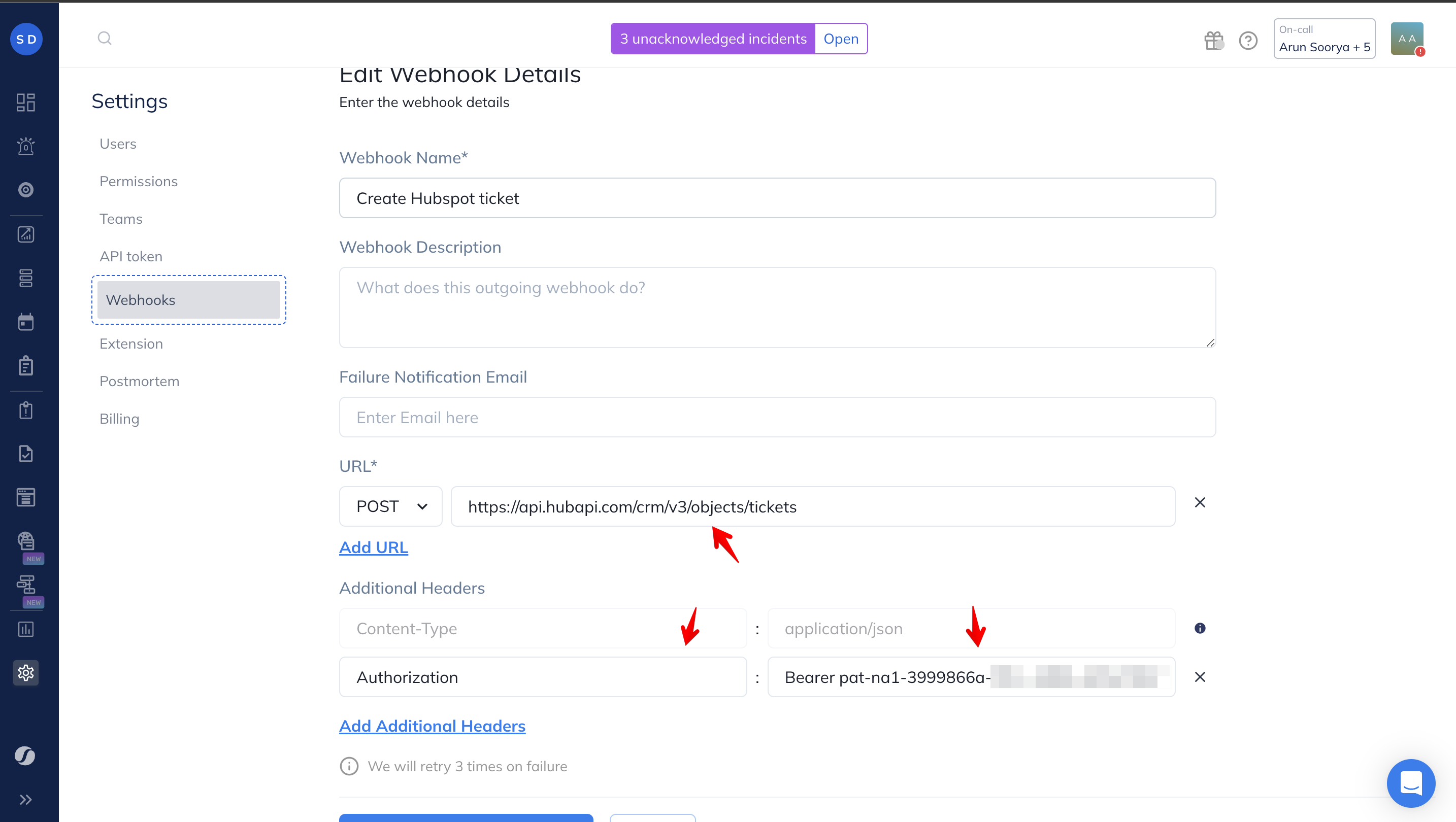
1. **Webhook Name**: Enter the webhook name as **Hubspot - Create Ticket**.
2. **Webhook Description** (optional): Enter an optional description. For example - This webhook is for ticket creation in Hubspot for Squadcast Incidents.
3. **Failure Notification Email** (optional): Enter an email where you want to receive failure notifications. This is particularly helpful when you (or an administrator) want to be notified of webhook-related failures.
4. **URL**: Copy and paste the below API.
5. **Additional Headers**: Add `Key: Authorization` and paste the `Value` copied from Hubspot with the prefix **Bearer**
[https://api.hubapi.com/crm/v3/objects/tickets](https://api.hubapi.com/crm/v3/objects/tickets)
Click **Next: Choose Webhook Type**, and navigate to the next step.
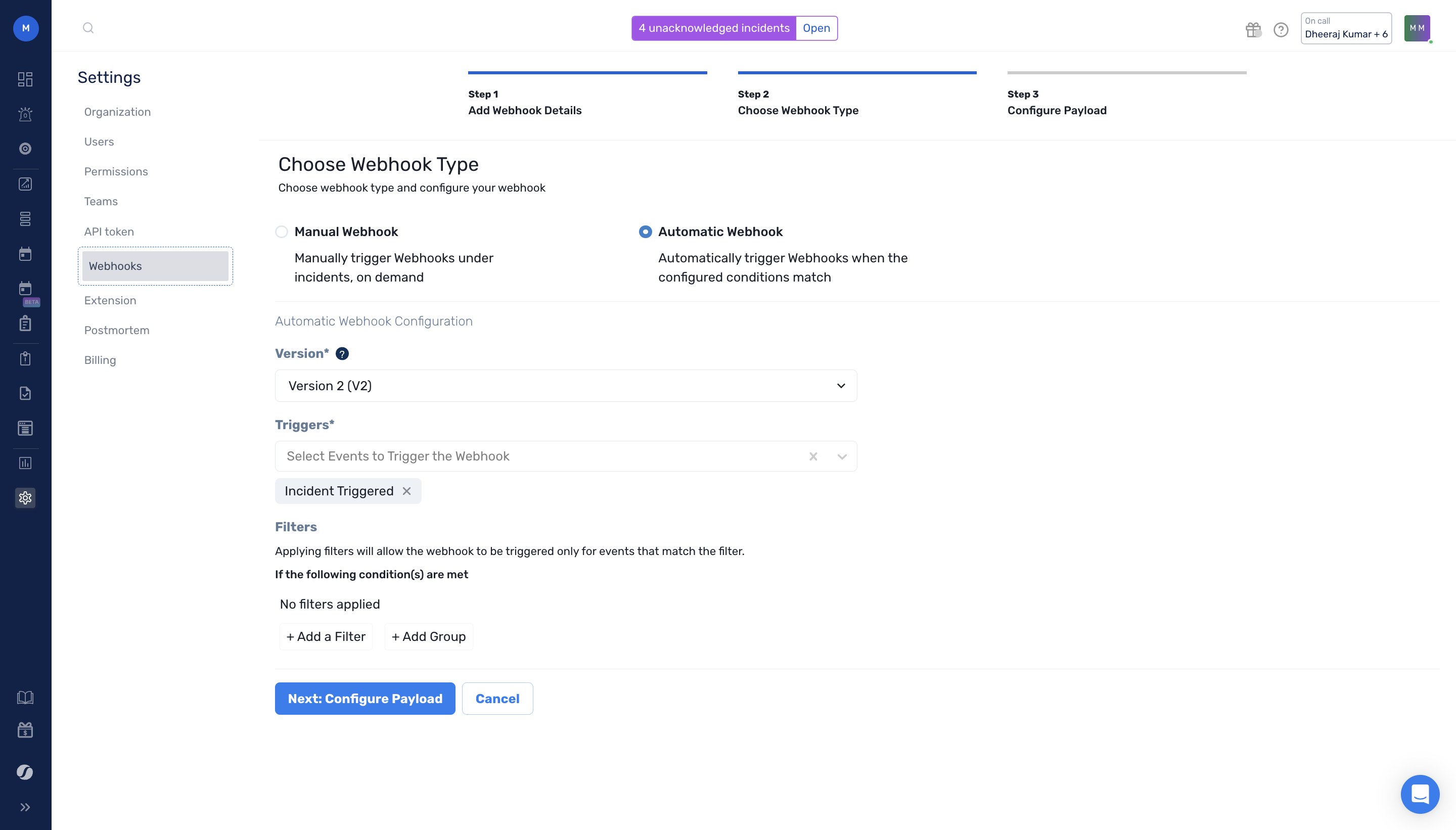
4. **Choose Webhook Type**: Choose Webhook type (Manual or Automatic) and add configurations.
1. **Manual Webhook**: Manually trigger Webhooks under incidents, on demand. Under Manual Webhook, select the teams that are authorized to access the Webhook. You can select All Teams or enter specific Teams, from the drop-down.
{% hint style="info" %}
**Note:**
Select this option only if you want to create Hubspot tickets manually on-demand. If you want a ticket, created automatically when certain conditions are met, please choose Automatic webhooks.
{% endhint %}
2. **Automatic Webhook**: Automatically trigger Webhooks when the configured conditions match. To set up Automatic Webhook Configurations:
3. **Versions**: Select **v2**
4. **Triggers**: Select the following Trigger events (conditions) for which the Webhook will be triggered:
1. Incident Triggered (This will create a Hubspot ticket whenever a new incident gets triggered in Squadcast)
5. **Filters**: You can apply filters on top of events, based on Teams, Services, Alert Sources, and Tags, by having an individual expression or a combination of expressions/expression groups.
Applying filters will trigger the webhook and create Freshservice tickets only for events that match the filter.
Click **Next: Configure Payload**, and navigate to the next step.
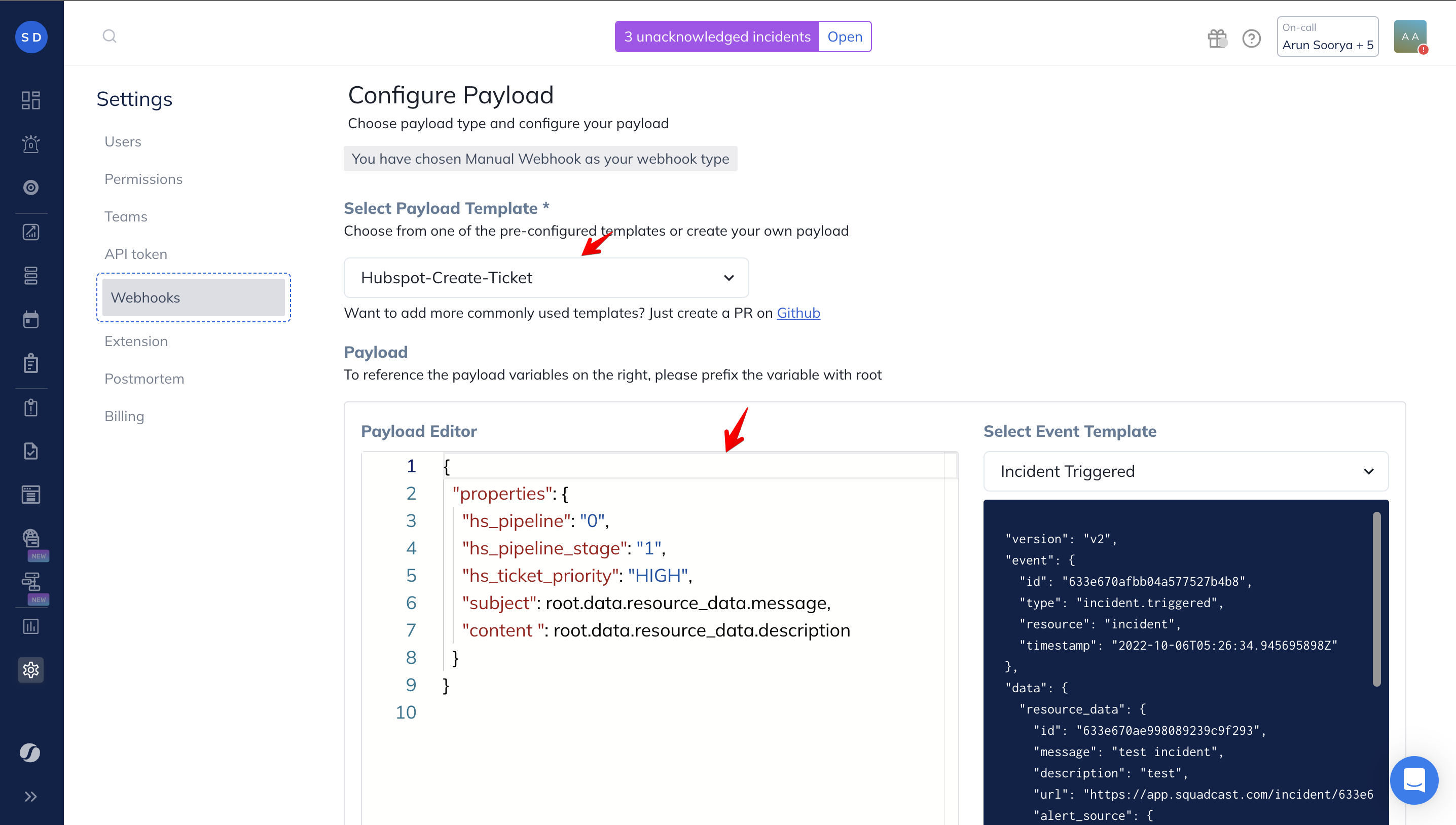
5. **Configure Payload**:\
\
Select the pre-configured template for **Hubspot - Create Ticket**. You can also test the Webhook by clicking the **Test Webhook** on the bottom right.
{% hint style="info" %}
**Note:**
We have added the necessary fields in the template. You can change the **"hs\_ticket\_priority"** and **"hs\_pipeline"** according to your use case and add additional ticket fields.
You can also [use this link](https://knowledge.hubspot.com/properties/hubspots-default-ticket-properties) to check the fields accepted by Hubspot API.
{% endhint %}
Click **Save** and your **Webhook** is created.
*Have any questions?* [*Ask the community*](https://community.squadcast.com/view/home)*.*
---
# Agent Instructions
This documentation is published with GitBook. GitBook is the documentation platform designed so that both humans and AI agents can read, navigate, and reason over technical content effectively. Learn more at gitbook.com.
## Querying This Documentation
If you need additional information that is not directly available in this page, you can query the documentation dynamically by asking a question.
Perform an HTTP GET request on the current page URL with the `ask` query parameter, and the optional `goal` query parameter:
```
GET https://support.incidents.cloud.solarwinds.com/integrations/extensions/hubspot.md?ask=&goal=
```
`ask` is the immediate question: it should be specific, self-contained, and written in natural language.
`goal` is optional and describes the broader end goal you are ultimately trying to accomplish on behalf of the user. GitBook uses it to tailor the answer towards what is most useful for that goal.
The response will contain a direct answer to the question and relevant excerpts and sources from the documentation.
Use this mechanism when the answer is not explicitly present in the current page, you need clarification or additional context, or you want to retrieve related documentation sections.