> For the complete documentation index, see [llms.txt](https://support.incidents.cloud.solarwinds.com/llms.txt). Markdown versions of documentation pages are available by appending `.md` to page URLs; this page is available as [Markdown](https://support.incidents.cloud.solarwinds.com/integrations/incident-webhook-incident-webhook-api.md).
# Incident Webhook (Incident Webhook/API)
Send events to create incidents in Squadcast using Incident Webhook (generic incoming Webhook)
This document will help you configure Incident Webhook to route alerts from monitoring tools or your internal (bespoke) systems into Squadcast. Incident Webhook can do both, trigger and resolve incidents in Squadcast, through HTTP POST requests.
Route detailed monitoring alerts coming in via Incident Webhook to the right users in Squadcast.
{% hint style="info" %}
**Note:**
We also support outgoing webhooks. You can find detailed information on how to configure them [here](/integrations/outgoing-webhooks.md).
{% endhint %}
## How to configure Incident Webhook
### In Squadcast: Using Incident Webhook as an Alert Source
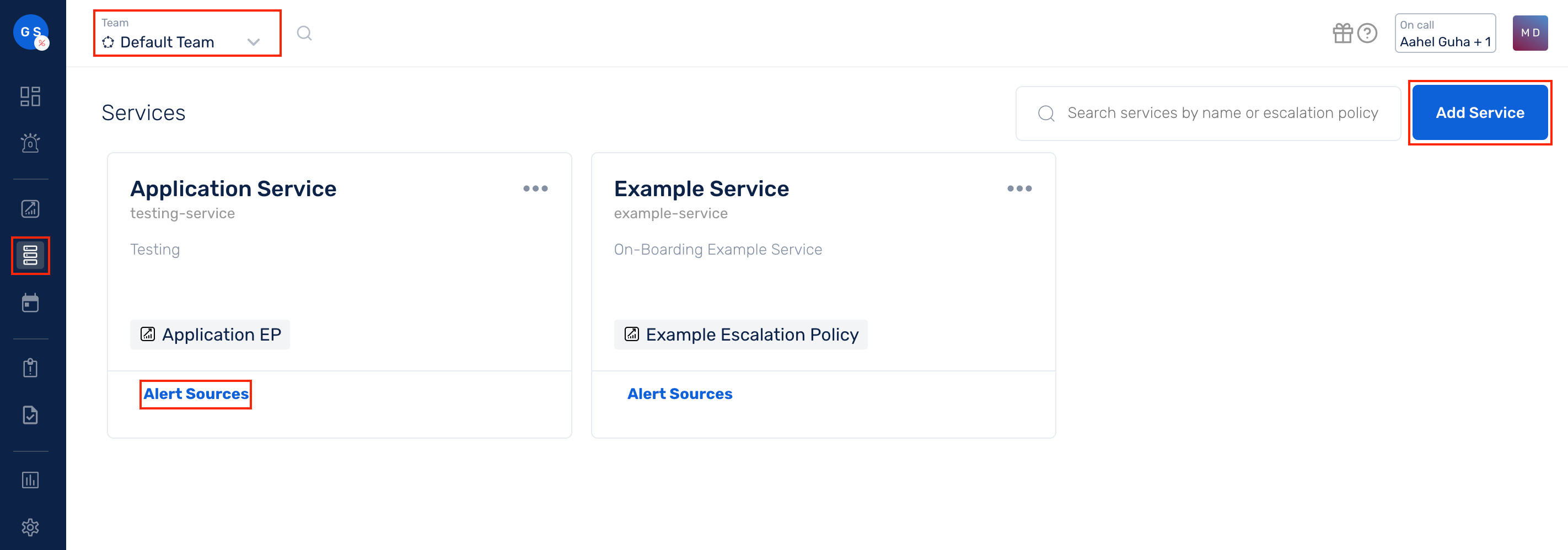
1. From the navigation bar on the left, select **Services**. Pick the applicable **Team** from the Team-picker on the top. Next, click on **Alert Sources** for the applicable Service
2. Search for **Incident Webhook** from the Alert Source drop-down and copy the Webhook URL. Use this Webhook URL endpoint to send `HTTP POST` requests

{% hint style="warning" %} **Important****:**
For an Alert Source to turn active (indicated by a **green dot - Receiving alerts** against the name of the Alert Source in the drop-down), you can either generate a test alert or wait for a real-time alert to be generated by the Alert Source.
An Alert Source is active if there is a recorded incident via that Alert Source for the Service in the last 30 days.
{% endhint %}
{% hint style="info" %} **Add header before making POST request**
Ensure that you add a header `Content-Type` with value `application/json` while making the HTTP POST request
{% endhint %}
The body of the POST request should contain the details of your incident in the following format:
```
{
"message": "This will be the incident message",
"description": "This will be the incident description",
"tags" : {
"tagname1":"Tag value#1",
"tagname2":"Tag value#2",
"tagname3": {
"color": "Valid HTML HEX Colour Notation goes here",
"value":"Tag value#3"
}
},
"priority": "P5",
"status": "trigger",
"event_id": "6"
}
```
{% hint style="info" %} **Information on certain fields within the JSON**
Kindly note that the **message** and **description** fields in the JSON are no longer mandatory to trigger an incident in Squadcast. You can enrich your incidents by adding other details optionally, in the same format as seen above in the example JSON.
If the **message** field is missing, the default message template of "Generic Webhook Alert" will be used automatically.
If the **status** field is missing, Squadcast will automatically default the status field to "Triggered" which would treat the incoming payload as a trigger event.
By default, incidents are triggered with an initial status. However, to resolve an incident, you must explicitly send a status update indicating that it has been resolved.
{% endhint %}
{% hint style="warning" %} **Important information for Event\_ID**
* Each incident requires a unique Event ID to be entered by the user. When resolving a specific incident, you must specify the corresponding unique Event ID. In the event of multiple incidents associated with the same Event ID, resolving one incident will result in the resolution of all incidents linked to that specific Event ID.
* If you do not provide an Event ID, any previous incidents without an Event ID will be automatically marked as resolved.
* The Event ID is an optional field and should not be confused with the Incident ID. They serve different purposes.
* While the Event ID is not mandatory, we strongly recommend including it to prevent the automatic resolution of triggered incidents without an Event ID. Adding the Event ID ensures that all incidents without an assigned Event ID are not auto-resolved.
{% endhint %}
{% hint style="info" %} **Note:**
1. Allowed values for priority are `P1`, `P2`, `P3`, `P4`, and `P5`.
2. If a value other than the allowed ones or no value is passed, Squadcast will have the priority level as `Unset`. Users can manually edit the priority via the web or the mobile app.
{% endhint %}
{% hint style="danger" %} **Payload Size Limitation**\
The payload size is limited to 30KB. Any payload that crosses this limit will not be processed.\
You will receive \[HTTP Status Code 413]\() to notify you of this.
{% endhint %}
### Event Identification and Resolution
This section will give you an understanding of how one can associate alerts with Squadcast incidents and resolve them with an API call.
#### Typical Incident JSON
```
{
"message": "This will be the incident message",
"description": "This will be the incident description",
"status": "trigger",
"event_id": "6"
}
```
This triggers an incident and associates the incident with the `event_id` value as specified. This `event_id` can be used to resolve the above-created incident with an API call.
To resolve an incident, a JSON with the format shown below should be sent.
```
{
"status": "resolve",
"event_id": "6"
}
```
* The `status` field should be set to the value `"resolve"`
* The associated `event_id` should also be sent along with this
{% hint style="info" %} **Resolving an Incident with an API call****:**
To resolve an incident, **message** and **description** fields are not required to be sent.
{% endhint %}
### Add a Tag From directly Incident JSON
This section will give you an understanding of how you can add tags to an incident straight from the Incident JSON using the Incident Webhook.
#### Typical Incident JSON:
```
{
"message":"This will be the incident message",
"description": "This will be the incident description",
"tags": {
"tagname1":"Tag value#1",
"tagname2":"Tag value#2",
"tagname3": {
"color": "Valid HTML HEX Colour Notation goes here",
"value":"Tag value#3"
}
}
}
```
#### Example 1: Using `tags` to set the *Severity* for the incident
```
{
"message": "Error rates higher than usual",
"description": "HTTP Error rates for srv_90 is above 90 counts/hour",
"tags": {
"severity": "high"
}
}
```
{% hint style="info" %} **The default colour for Tags****:**
If a color code is not mentioned explicitly, then the system takes the default color "**#808080**" (gray) for tags
{% endhint %}
To specify a color explicitly for `tags`:
```
{
"message": "Error rates higher than usual",
"description": "HTTP Error rates for srv_90 is above 90 counts/hour",
"severity": {
"colour": "#FF0000",
"value":"backend"
}
}
```
#### Example 2: Adding different tags to an incident
```
{
"message": "Error rates higher than usual",
"description": "HTTP Error rates for srv_90 is above 90 counts/hour",
"tags" : {
"priority": "P1",
"impact_level": 5,
"classification": {
"color":"#FF0000",
"value":"backend"
}
}
}
```
*Have any questions?* [*Ask the community*](https://community.squadcast.com/view/home)*.*
---
# Agent Instructions
This documentation is published with GitBook. GitBook is the documentation platform designed so that both humans and AI agents can read, navigate, and reason over technical content effectively. Learn more at gitbook.com.
## Querying This Documentation
If you need additional information that is not directly available in this page, you can query the documentation dynamically by asking a question.
Perform an HTTP GET request on the current page URL with the `ask` query parameter, and the optional `goal` query parameter:
```
GET https://support.incidents.cloud.solarwinds.com/integrations/incident-webhook-incident-webhook-api.md?ask=&goal=
```
`ask` is the immediate question: it should be specific, self-contained, and written in natural language.
`goal` is optional and describes the broader end goal you are ultimately trying to accomplish on behalf of the user. GitBook uses it to tailor the answer towards what is most useful for that goal.
The response will contain a direct answer to the question and relevant excerpts and sources from the documentation.
Use this mechanism when the answer is not explicitly present in the current page, you need clarification or additional context, or you want to retrieve related documentation sections.