> For the complete documentation index, see [llms.txt](https://support.incidents.cloud.solarwinds.com/llms.txt). Markdown versions of documentation pages are available by appending `.md` to page URLs; this page is available as [Markdown](https://support.incidents.cloud.solarwinds.com/manage-teams/add-and-remove-team-members.md).
# Add and Remove Team Members
This document will walk you through how you can add or remove members from a Team.
### Add a Member to a Team
1. Navigate to **Settings** -> **Teams** and select the Team to which a new member needs to be added.
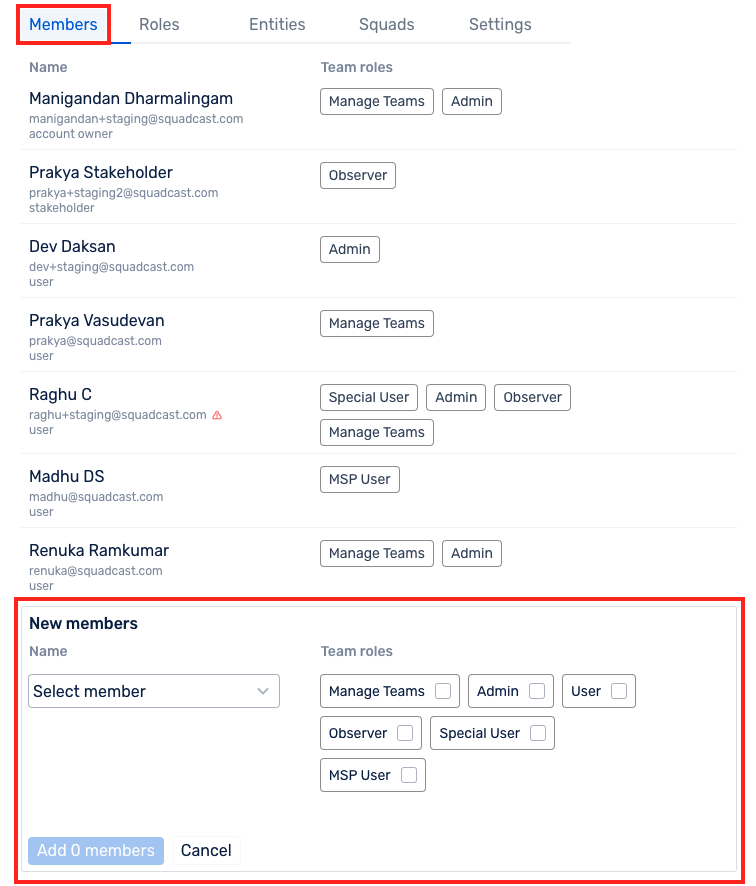
2. Under **Members** section, scroll down to the bottom of the page -> Click on **Add New Members**, select the member from the drop-down list, and select the `Team Roles.`
3. Click on **Add Members** and confirm their addition to the Team
{% hint style="info" %} **Note**:
In organizations utilizing Owner-Based Access Control, users can be assigned one of three Team Roles: Team Owner, Team Member, or Stakeholder. Please refer to the image below.
{% endhint %}
### Remove a Member from a Team
1. Click on **Settings** in the sidebar
2\. Click on **Teams** from the secondary navigation menu and select the Team from which the Team member has to be removed
3\. Click on **Members** from the horizontal menu and hover over the name of the Team member that needs to be removed
4\. Click on **Remove** via `More Options` corresponding to the concerned Team member & confirm **Remove** in the pop-up window to remove the member from the Team
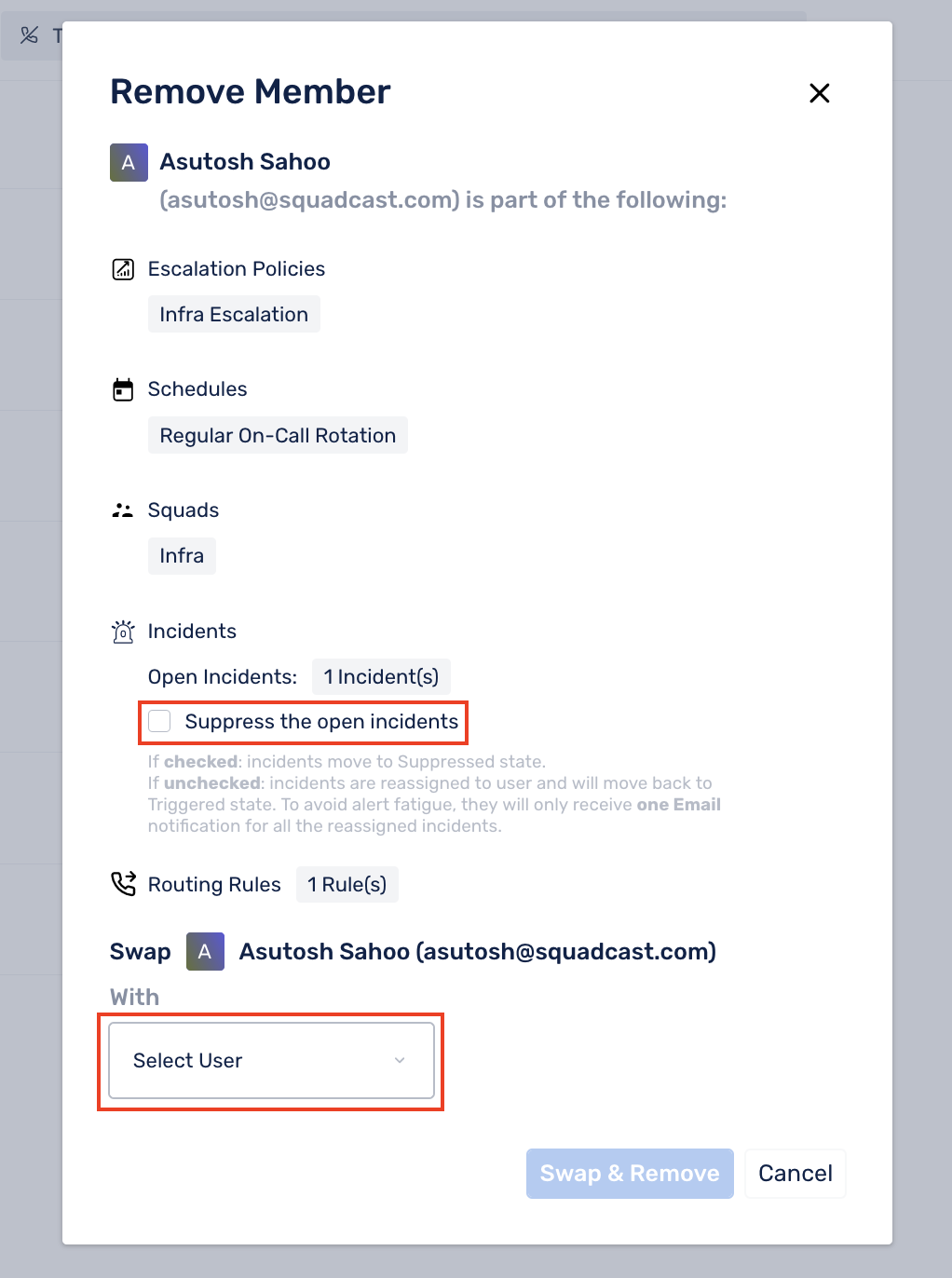
5\. If the Team member to be removed is a part of any of the entities (Incidents, Escalation Policies, Schedules) that belong to the Team, a modal displaying those details will appear
6\. Now, select the Team member who will replace the one who is being removed using the available drop-down
{% hint style="warning" %}
**Important:** For incidents, there are 2 options:
* If the checkbox is left **unchecked**, all the incidents assigned to the member being removed will be reassigned to the replacing Team member. The replacing Team member will receive **one** Email notification notifying them of the incidents that are now assigned to them
* If the checkbox is **checked**, all the **open** incidents (incidents in the `Triggered` and `Acknowledged` states) assigned to the member being removed will be suppressed
{% endhint %}
7\. Once the appropriate replacement Team member is selected and action for incidents is determined, click on **Swap & Remove.**
{% hint style="warning" %} **Important:** If a user is removed from the team or downgraded to a stakeholder role, they will be removed from the responder list.
{% endhint %}
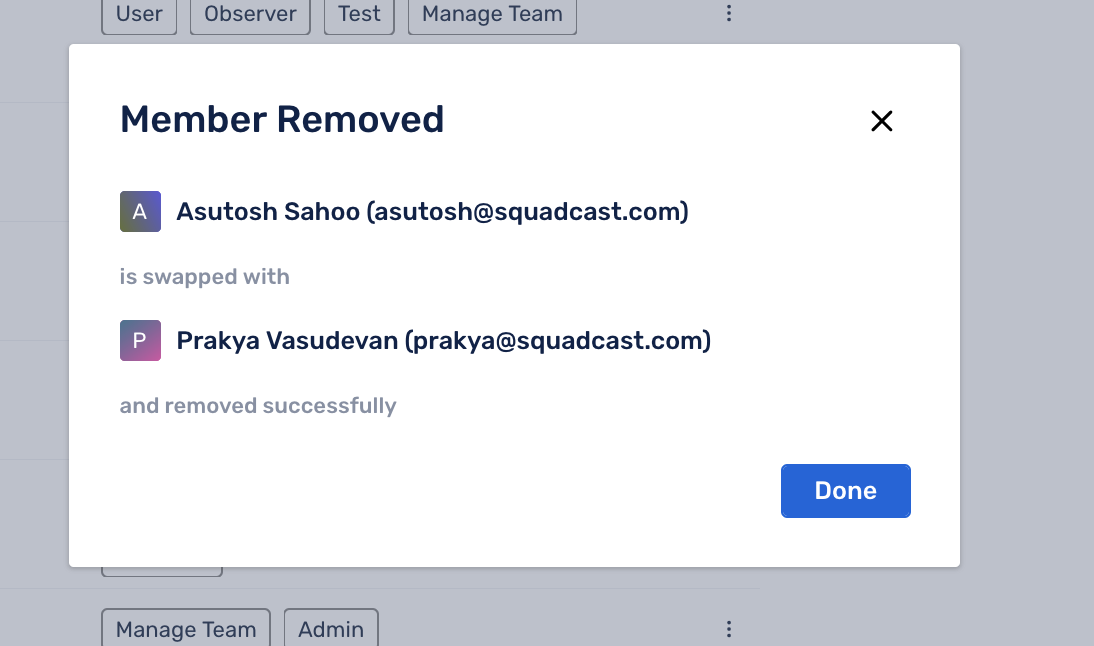
8\. A success modal confirming the swap will appear, like in the screenshot below
In addition to this, if a user also needs to be deleted from the Organization, please follow the steps [here ](/manage-users/add-and-delete-users.md#delete-users)to do so.
*Have any questions?* [*Ask the community*](https://community.squadcast.com/view/home)*.*
---
# Agent Instructions
This documentation is published with GitBook. GitBook is the documentation platform designed so that both humans and AI agents can read, navigate, and reason over technical content effectively. Learn more at gitbook.com.
## Querying This Documentation
If you need additional information that is not directly available in this page, you can query the documentation dynamically by asking a question.
Perform an HTTP GET request on the current page URL with the `ask` query parameter, and the optional `goal` query parameter:
```
GET https://support.incidents.cloud.solarwinds.com/manage-teams/add-and-remove-team-members.md?ask=&goal=
```
`ask` is the immediate question: it should be specific, self-contained, and written in natural language.
`goal` is optional and describes the broader end goal you are ultimately trying to accomplish on behalf of the user. GitBook uses it to tailor the answer towards what is most useful for that goal.
The response will contain a direct answer to the question and relevant excerpts and sources from the documentation.
Use this mechanism when the answer is not explicitly present in the current page, you need clarification or additional context, or you want to retrieve related documentation sections.
%20(1)%20(3)%20(1)%20(1)%20(1)%20(1)%20(1)%20(1)%20(1)%20(1)%20(1)%20(1)%20(1)%20(1)%20(1)%20(1)%20(6).png?alt=media&token=2f625b59-78a7-4fa2-b7ad-27189999a795)
.png?alt=media) {% endhint %}
### Remove a Member from a Team
1. Click on **Settings** in the sidebar
{% endhint %}
### Remove a Member from a Team
1. Click on **Settings** in the sidebar
%20(1)%20(1)%20(1)%20(11)%20(1)%20(1)%20(1)%20(1)%20(1)%20(1)%20(1)%20(1)%20(1)%20(1)%20(1)%20(1)%20(1)%20(1)%20(31).png?alt=media&token=36ead2f9-c378-49e1-b6c4-1ec54fcf2cd1)