> For the complete documentation index, see [llms.txt](https://support.incidents.cloud.solarwinds.com/llms.txt). Markdown versions of documentation pages are available by appending `.md` to page URLs; this page is available as [Markdown](https://support.incidents.cloud.solarwinds.com/solarwinds-integration/login-with-solarwinds.md).
# Login With SolarWinds
A new login option exhibiting a unified experience for shared users of SWO SaaS and IR
{% hint style="info" %}
Squadcast is now SolarWinds Incident Response. We are undergoing a phased re-branding activity. In the mean time, you might notice both names in use across multiple places.
{% endhint %}
#### Authentication & Seamless Access
Users can move between SolarWinds Observability SaaS (SWO SaaS) and Incident Response (IR) without redundant credential entries.
**A. In-App Switching**
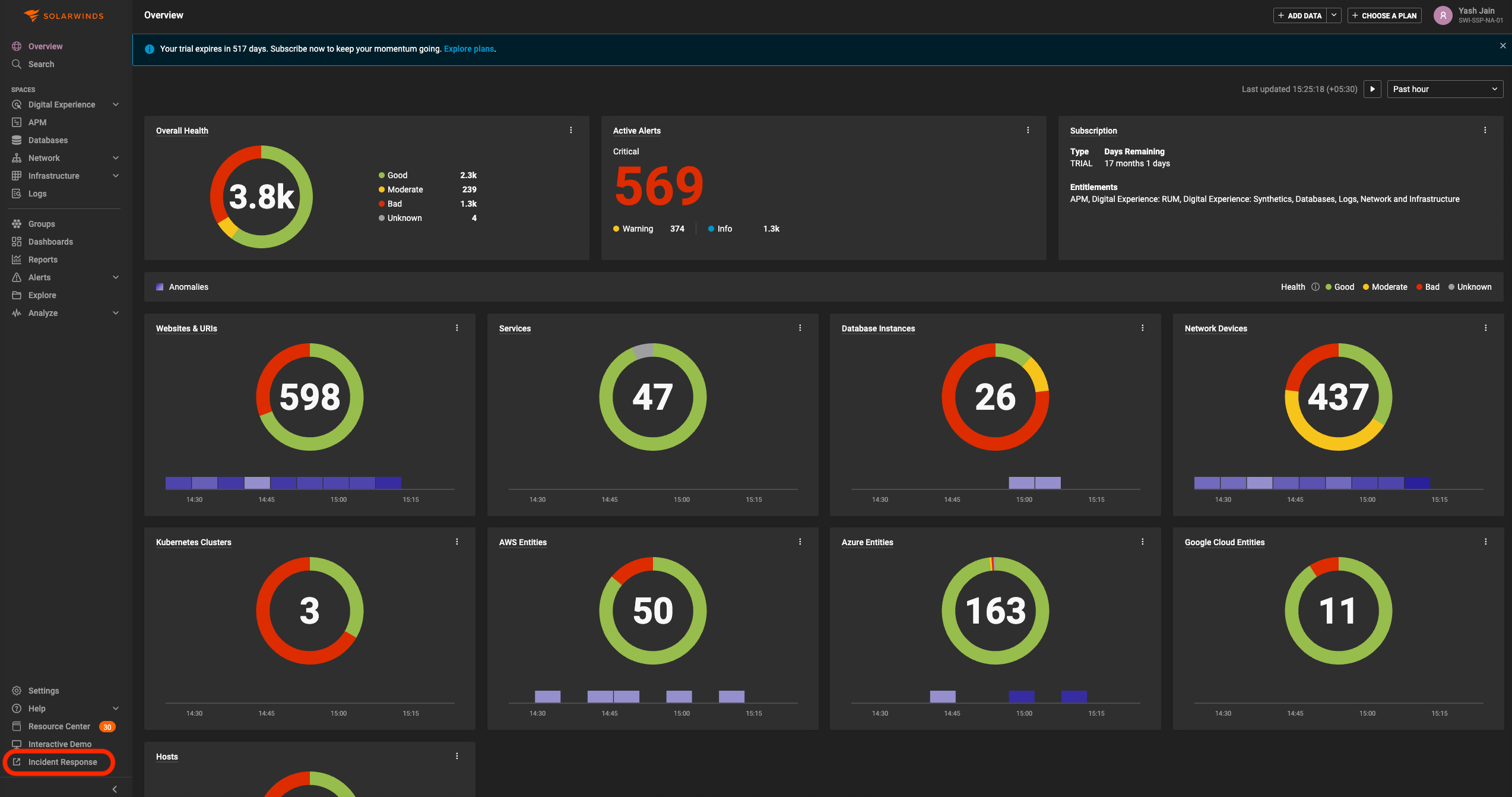
* The Switcher: Once the trial is active (or a paid subscription of the IR account is present), a "Incident Response" button appears within the SWO SaaS UI.
* Seamless Transition: Clicking this button utilises a shared session to move the user to the IR app without requiring a new login.
**B. Incident Response Login Page**
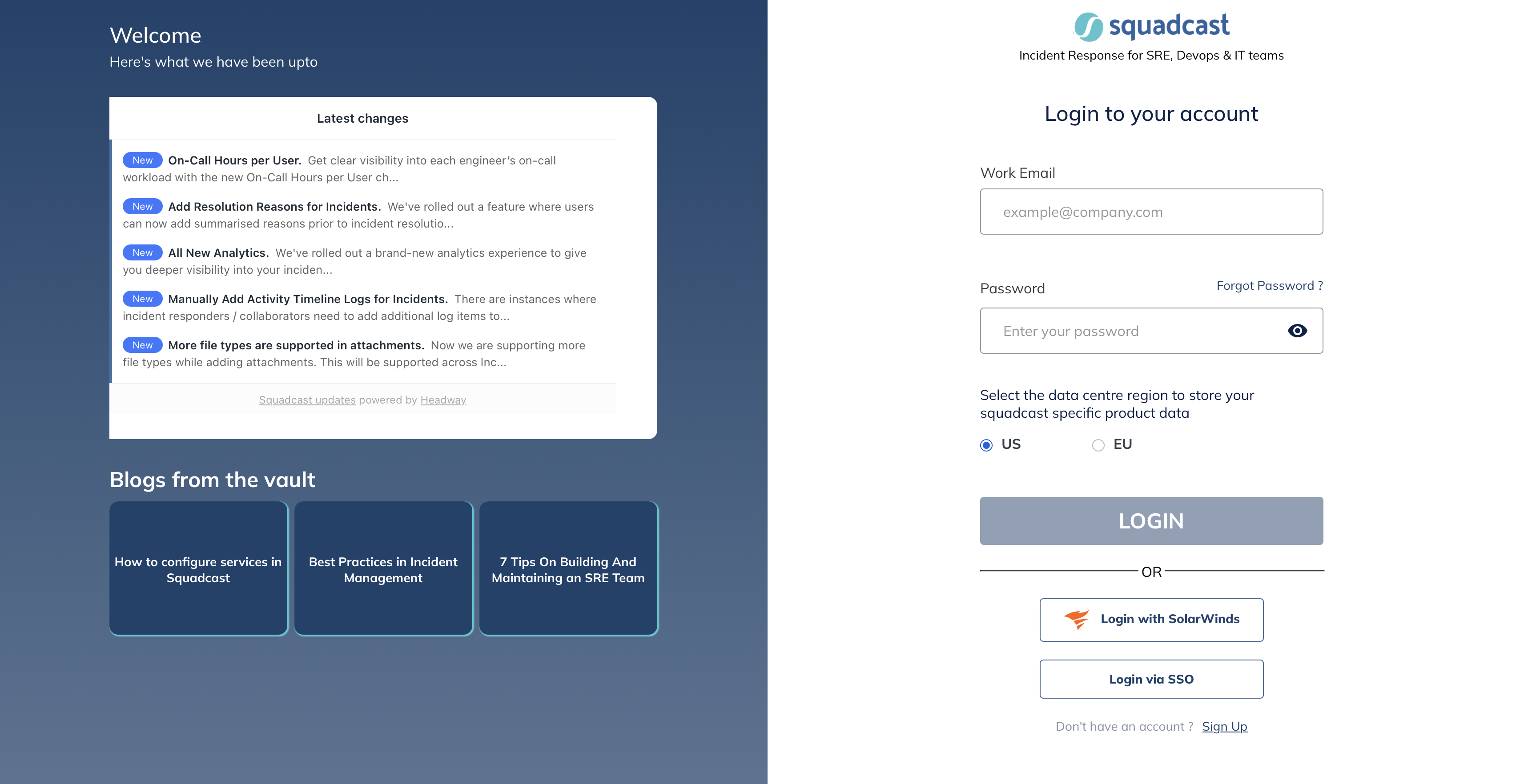
* Federated Login: The IR login page will feature a "Login with SolarWinds" option.
* If you are already logged into your SWO SaaS account: You will be automatically signed into IR.
* Otherwise, below is the redirection logic:
1. User clicks "Login with SolarWinds."
2. System redirects to the SWO SaaS login page.
3. User enters their SWO SaaS credentials.
4. System redirects the authenticated user back to the IR home page.
**C. Mobile Access**
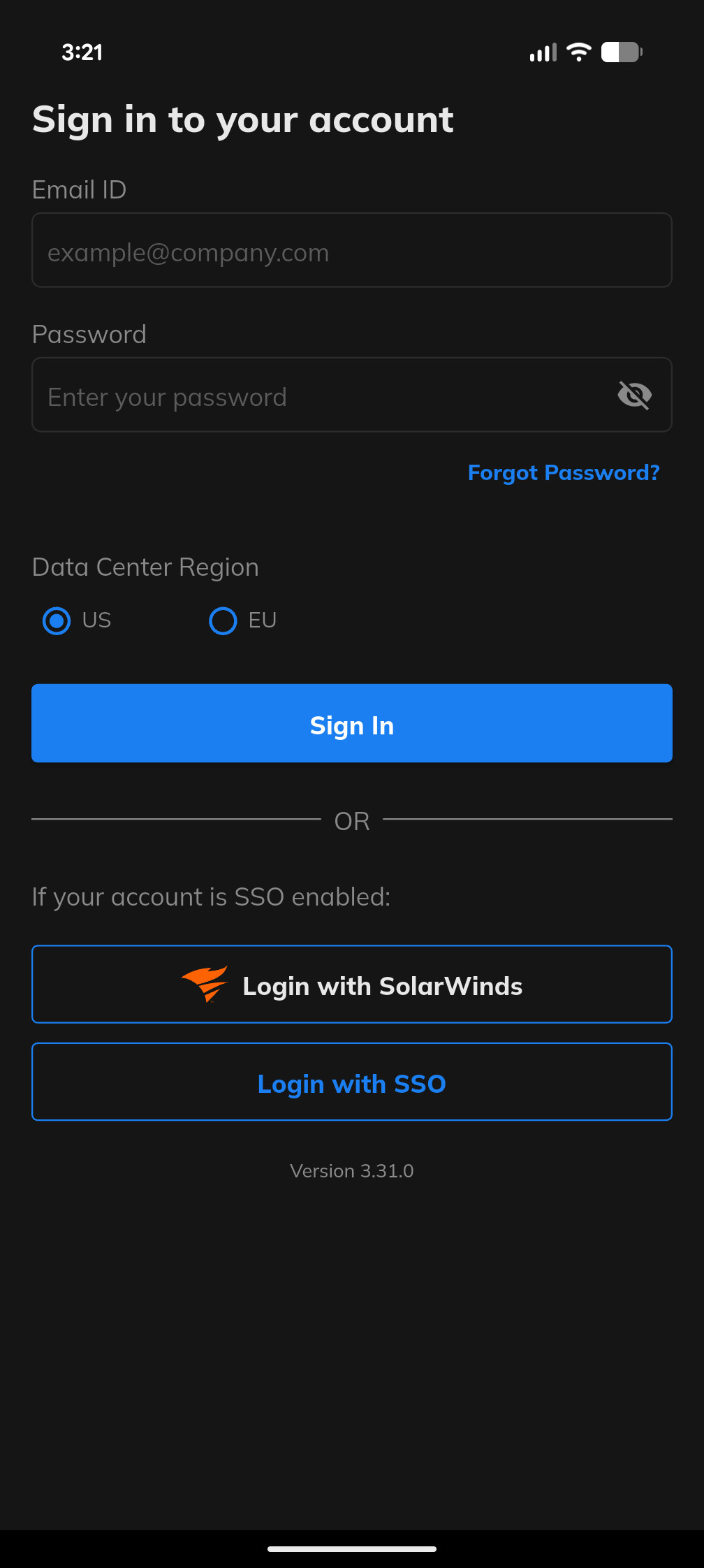
* The Incident Response mobile app will now include the "Login with SolarWinds" button, ensuring consistency across web and mobile platforms.
#### FAQs
1. When a user in SWO SaaS is not present in the linked IR account but tries to “Sign in with SolarWinds” on IR login page, what happens then?
Such users will see an error - Your SolarWinds account is not yet linked to a SolarWinds Incident Response workspace. Please activate or join a workspace from your SolarWinds account. Such users can simply click on "Incident Response" button from their SWO SaaS account, which will then provision their user in IR and then, they can login with available options.
2. What happens when a user or a viewer clicks “Try Incident Response”?
Such users will see an error - You don’t have permissions to activate SolarWinds Incident Response for this organization. Please contact an Account Owner or Admin.
---
# Agent Instructions
This documentation is published with GitBook. GitBook is the documentation platform designed so that both humans and AI agents can read, navigate, and reason over technical content effectively. Learn more at gitbook.com.
## Querying This Documentation
If you need additional information that is not directly available in this page, you can query the documentation dynamically by asking a question.
Perform an HTTP GET request on the current page URL with the `ask` query parameter, and the optional `goal` query parameter:
```
GET https://support.incidents.cloud.solarwinds.com/solarwinds-integration/login-with-solarwinds.md?ask=&goal=
```
`ask` is the immediate question: it should be specific, self-contained, and written in natural language.
`goal` is optional and describes the broader end goal you are ultimately trying to accomplish on behalf of the user. GitBook uses it to tailor the answer towards what is most useful for that goal.
The response will contain a direct answer to the question and relevant excerpts and sources from the documentation.
Use this mechanism when the answer is not explicitly present in the current page, you need clarification or additional context, or you want to retrieve related documentation sections.